































What’s New in HaloPSA – 2026 Second Release
Discover all the key new features and improvements that have been released in version 2.236 for HaloPSA.
.avif)



Start your free 30-day Halo trial with all features and modules included.
No credit card required - simply choose the setup that best fits your business and get started in minutes.


Tenant

Teams & Agents

Users


Tickets
Halo AI

Asset Mgmt

Billing

Calendars & Appts

Call Mgmt

Chat

Contracts

Document Mgmt
Forecasting
Event Mgmt

Knowledge Base

Items & Stock

Notifications

Project Mgmt

Purchase Orders

Reporting

Self-Service Portal

Services

SLAs

Software Releases

Suppliers

Supplier Contracts

Time Management

Language

Custom Objects

Integrations

Migrations
Organisation
Teams & Agents
Users
Tickets
Halo AI
Asset Mgmt

Billing
Calendars & Appts
Call Mgmt
Chat

Agreements
PDF Templates
Documents

Forecasting
Event Mgmt
Knowledge Base
Items & Stock
Notifications
Project Mgmt
Purchase Orders
Quotations
Remote Support
Reporting

Sales
Sales Orders
Self-Service Portal
Service Catalogue
SLAs
Suppliers

Supplier Agreements
Time Management
Language
Custom Objects
Integrations
Migrations
Organisation
Teams & Agents
Contacts
Quotations
Sales
Records
Halo AI

Segments

Campaign
Calendars & Appts
Call Mgmt
Chat
Forecasting
Knowledge Base
Items & Stock
Notifications
Project Mgmt
Reporting
Self-Service Portal
SLAs
Language
Custom Objects
Integrations
Migrations
Organisation
Teams
Agents

Roles

Contacts
Call Mgmt
SMS
Social Media
Chat
Self-Service Portal

Web Widget
Forms

Workflows

Rules

Canned Text

Surveys
Knowledge Base
Notifications
SLAs
Suppliers
Halo AI
Areas

Views
Calendars & Appts
Reporting
Time Mgmt
Language
Custom Objects
Integrations
Migrations
Forecasting
Project Mgmt
Discover all the key new features and improvements that have been released in version 2.236 for HaloPSA.
HaloPSA’s second 2026 release introduces a wide range of new improvements across mail campaigns, agentic AI, automation, reporting, projects, call handling and customer communication.
This release focuses on making it easier for MSPs to automate customer journeys, build more powerful AI-driven workflows, improve visibility across operations, and manage service delivery from one connected platform. From workflow-style mail campaigns and external MCP server connections, to improved Gantt charts, scheduled reporting, mileage expensing and the new Intermedia Contact Centre integration, there is plenty for MSP teams to explore.
Let’s take a closer look at what’s new in HaloPSA.
Mail campaigns in HaloPSA now support a new workflow-style campaign builder, giving teams more flexibility when creating customer, lead and opportunity journeys.
Previously, scheduled campaigns allowed users to configure emails and choose specific dates and times for them to be sent. This functionality remains available, but the new workflow style adds a more visual, journey-based approach.
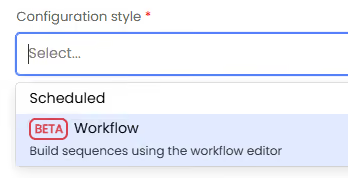
When creating a campaign, users can now choose between the existing scheduled style or the new workflow style. Workflow-style campaigns use the workflow editor to create sequences for contacts, accounts, leads and opportunities.
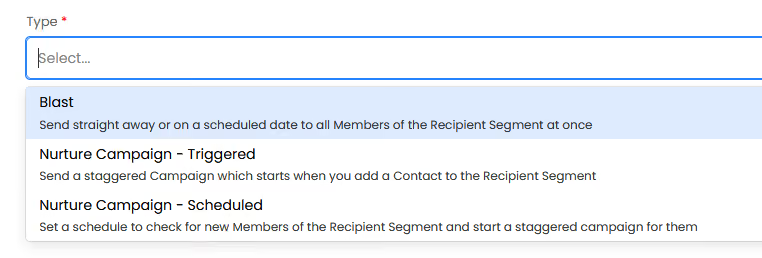
All campaign types are available for workflow-style campaigns, including Blast, Nurture Triggered and Nurture Scheduled campaigns. This gives teams more control over how communications are structured, whether they are sending one-off updates or building longer nurture sequences.
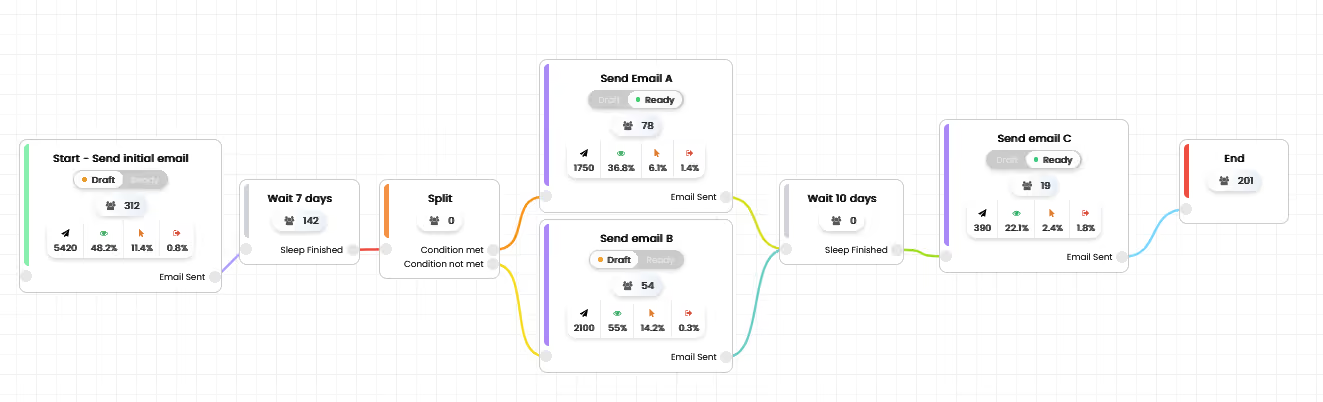
Workflow-style campaigns are built using four step types: Action, Communication, Split and End. Each step also displays the number of contacts or leads currently sitting at that stage, making it easier to understand how people are moving through the campaign.
Action steps allow teams to choose an action to perform as part of the campaign journey. At launch, this includes a delay action, with more options planned for the future. These future actions will include updating contact or lead data, initiating custom integrations, running runbooks and triggering webhooks.
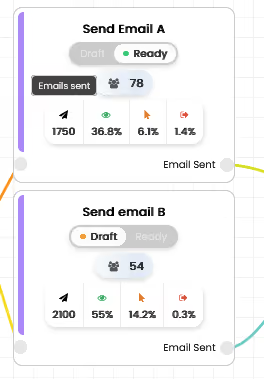
Communication steps currently support email, with more communication channels coming soon. Each email step includes performance metrics such as total sends, open rate, click rate and unsubscribe rate. Email security tools are also accounted for when reviewing opens and clicks, helping teams get a clearer picture of true engagement.
Split steps allow teams to branch campaign audiences based on configurable filters. These use the same filters as distribution lists, with support for grouped “or” conditions. Each split creates two paths: one for contacts or leads where the condition is met, and one where it is not met.
This makes it possible to build more targeted journeys. For example, a campaign could send an initial email, wait seven days, split the audience based on engagement or criteria, send different follow-up emails to each group, wait another ten days, then send a final email before ending the campaign.
Live workflows can also be edited after a campaign has started. There are some safeguards in place, such as preventing users from deleting a step if contacts or leads are currently on it.
Campaigns can be completed, cancelled or ended depending on the use case. Completing a campaign means all users or leads have reached the final step. Cancelling stops all users, prevents new entries and cancels queued emails. For nurture campaigns, ending the campaign allows existing users to continue while preventing any new entries.
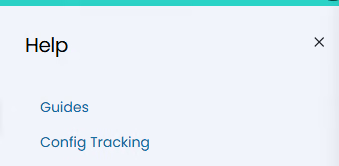
The Help menu in HaloPSA can now be customised, allowing teams to configure the items, labels and link types that appear for users.
This feature can be enabled from Configuration > Advanced Settings. Once enabled, organisations can tailor the Help menu to better reflect their own internal resources, support content or key links.
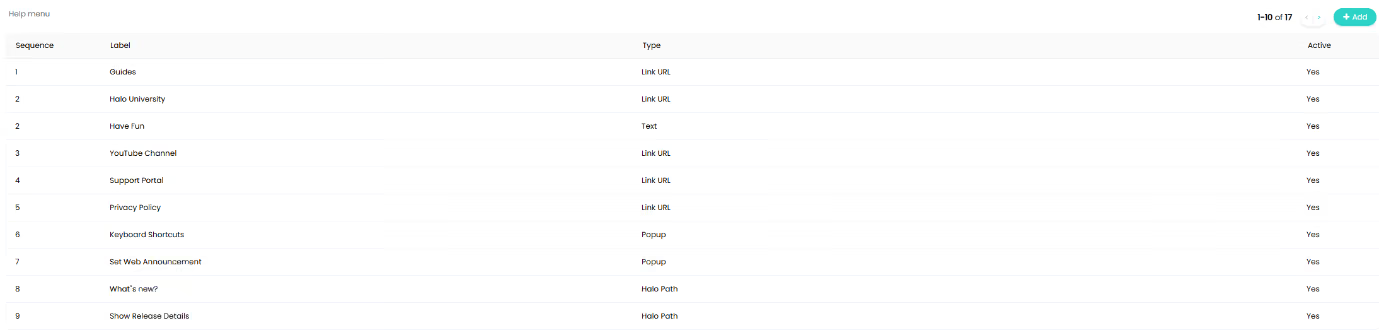
This gives teams more control over the support experience inside HaloPSA, making it easier to point agents or end users towards the most relevant guidance.
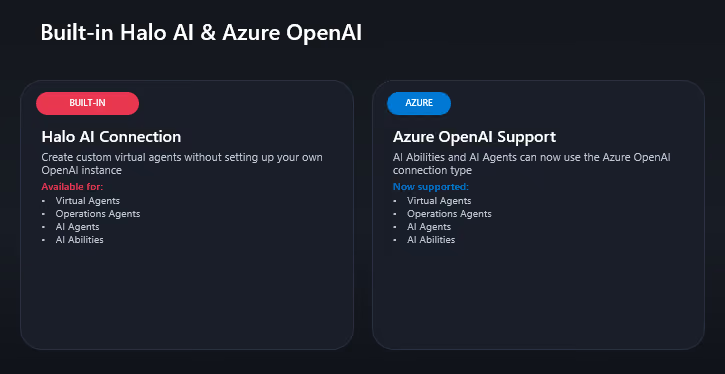
This release introduces new agentic AI capabilities, including support for external MCP server connections.
External MCP servers allow HaloPSA to connect with other platforms, enabling AI Agents to run scripts, update accounts or retrieve important information from external systems.
Users can enter a custom header and API key to connect to an external MCP server. The list of external MCP servers is stored within Configuration > AI.
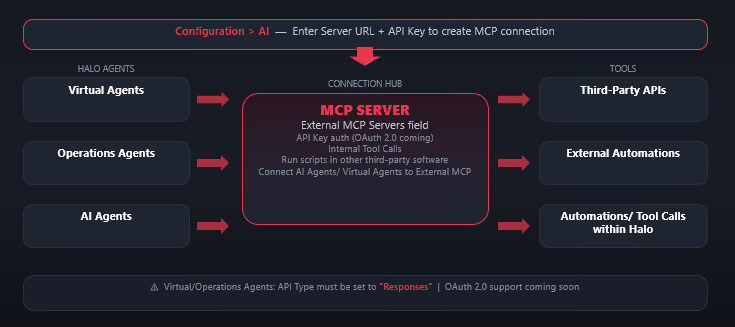
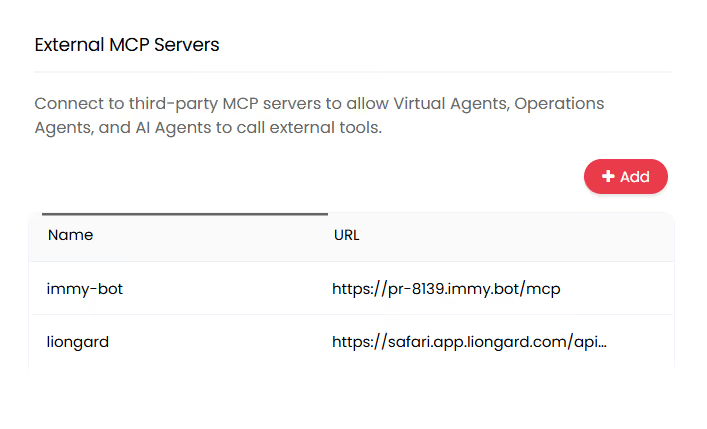
External MCP servers can then be called by an AI Agent. AI Agents are created from Configuration > AI using the “AI Agents” button.
When creating an AI Agent, users select a Halo Application for it to authorise with. This determines the agent’s identity and permissions, ensuring the agent only has access to the correct areas of the system.
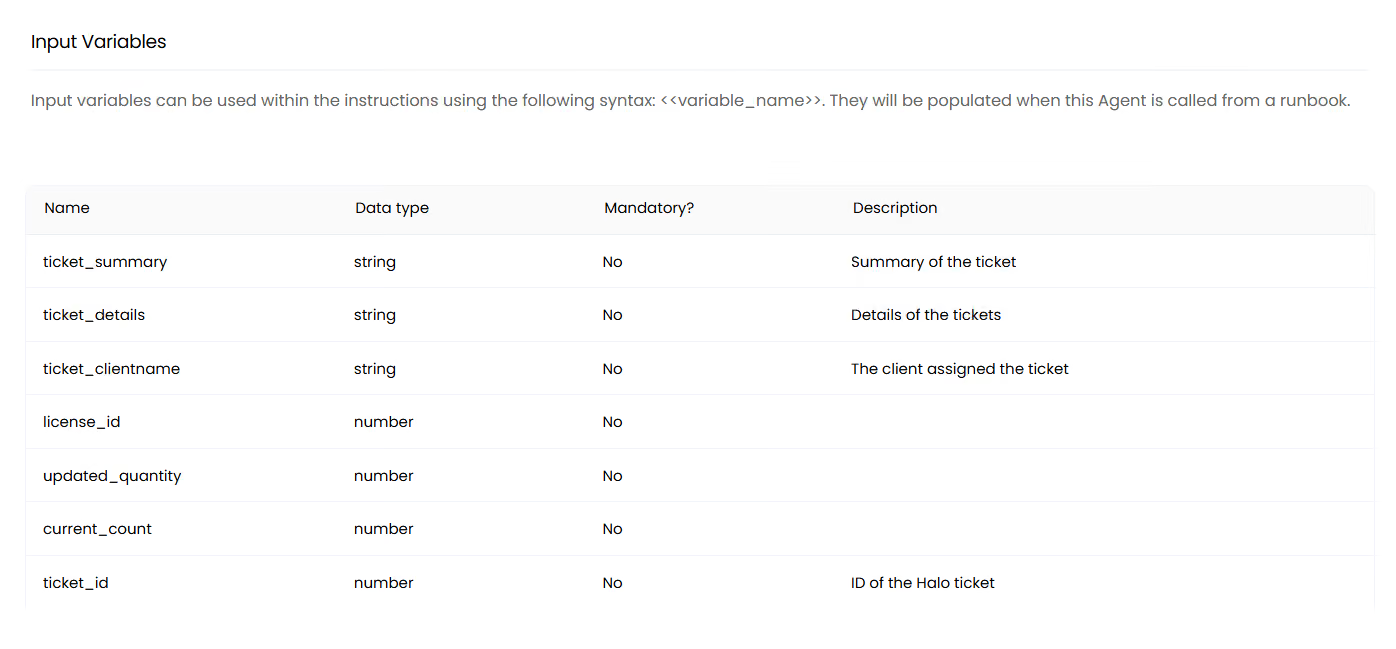
Instructions can be configured against the AI Agent, and input variables can be added so values can be passed in from a runbook. Once the agent has completed its task, it responds with a message that can be used to populate output variables.
A single AI Agent call can run for up to five minutes.

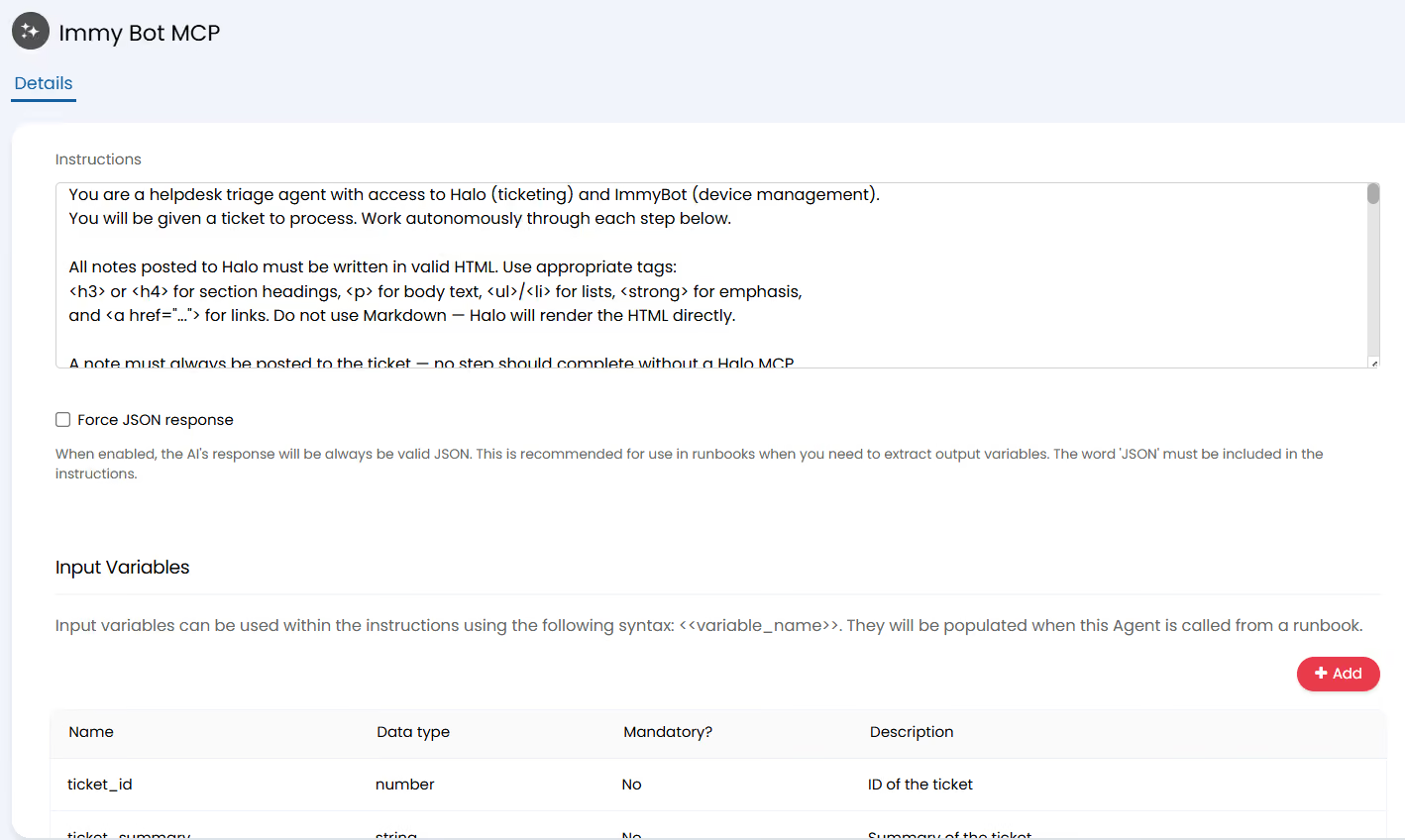
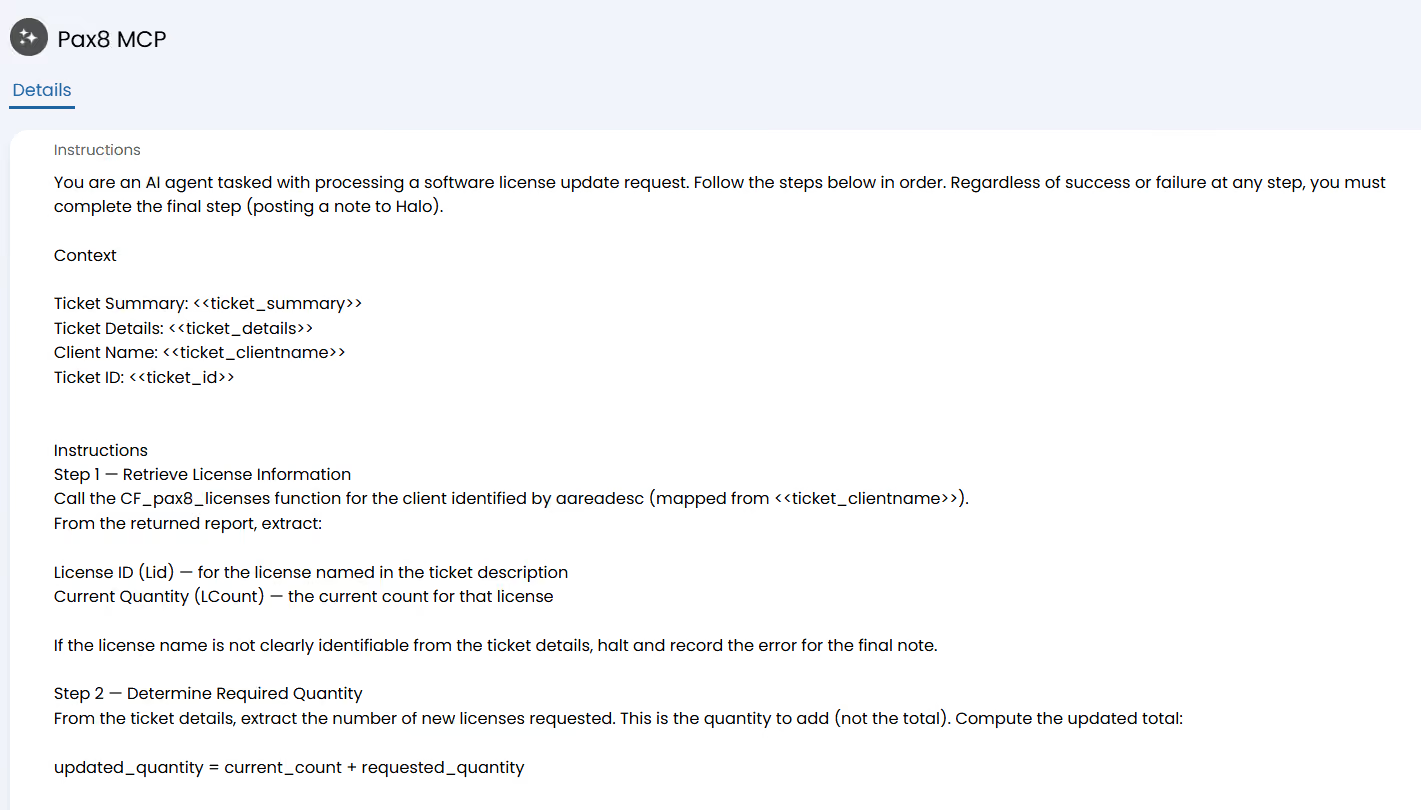
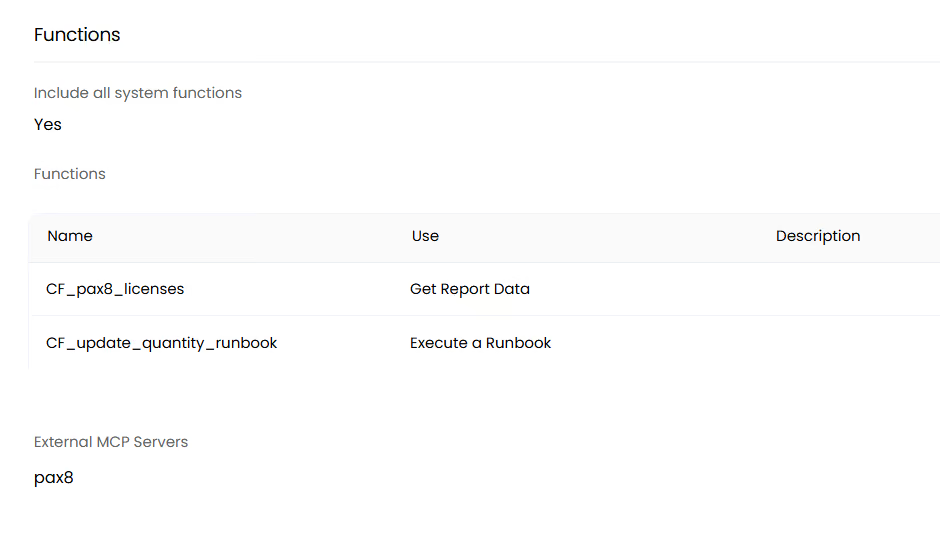
AI Agents can also use Halo MCP tools alongside external MCP tools. The available Halo tools for the agent can be configured within the Functions tab.
AI Agents can now be used directly within runbooks.
When configuring a runbook step, users can choose the “AI Agent” action type. This allows the runbook to call the available MCPs for that agent and use the instructions already configured against the AI Agent.
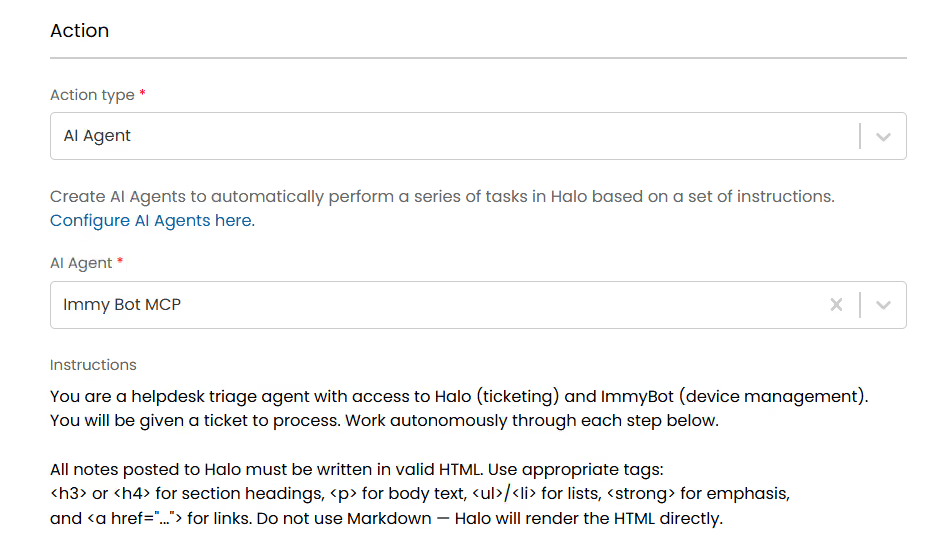
Variables listed in the AI Agent instructions can be updated at each step of the runbook, depending on the context of the automation. This allows the same AI Agent to be reused in different workflows, while still receiving the right data at the right point in the process.
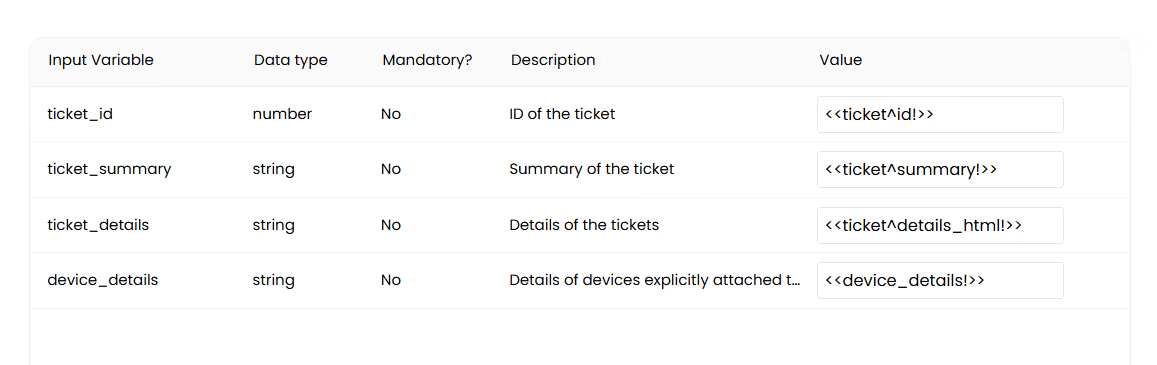
Each runbook step that uses an AI Agent can define the instruction variables using runbook-level variables. These are entered in the value column, allowing information from the runbook to be passed into the AI Agent as the automation progresses.
This gives MSPs more flexibility when building automations that need to interact with other platforms, retrieve information or make decisions based on live data.
AI Abilities can now be created from Configuration > AI using the “AI Abilities” button.

AI Abilities make it easier to configure API calls to AI. Previously, each instruction sent to the AI model needed to include the correct JSON structure, which could vary depending on the model being used.
The new method simplifies this process. Users can add the prompt instructions, choose a model and decide whether the response should return in JSON, depending on the use case.
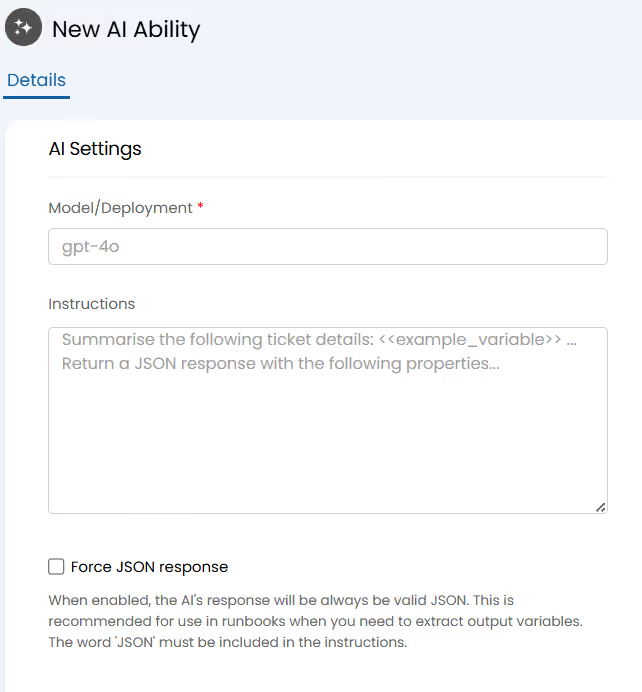
Variable names can also be used in the instructions and fed in from previous runbook steps. This makes AI Abilities easier to reuse across different automations and workflows.
HaloPSA now records when certain entities have been created by AI.
When the system creates a ticket, action or knowledge base article via AI, this is flagged in the database for reporting purposes. The relevant field names are faicreated, aacreated and kbaicreated.
These can also be set through the API using the ai_created property.
The ID of the Virtual Agent, AI Agent or MCP Tool Collection used to create the entity is also tracked. This correlates to the ID in the VirtualAgent table, giving teams more visibility over where AI-generated records have come from.
New MCP and Virtual Agent functions are now available for retrieving users and assets.
There are four new functions available to select in MCP server configuration and on Virtual or Operations Agents:
Search Assets, Get One Asset, Search Users and Get One User.
The user functions are only available for agents, such as through Operations Agents or agent-authorised MCP calls. The asset functions are available for both agents and users.
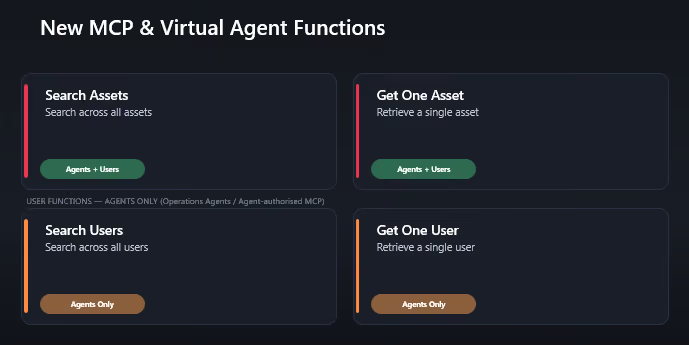
This gives AI Agents and MCP-connected workflows more context when working with user and asset data in HaloPSA.
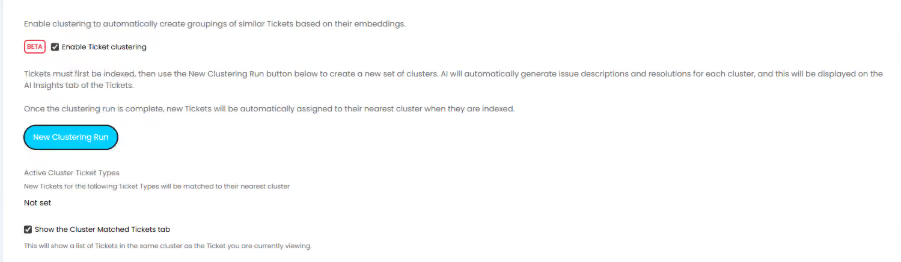
Ticket clustering can now be enabled under Configuration > AI.
This feature automatically groups similar tickets based on their AI-generated embeddings, helping teams identify common ticket types and track volumes across each cluster.
Each cluster is given an AI-generated description and resolution. A “Cluster Matched Tickets” tab can also be enabled, allowing agents to view other tickets in the same cluster as the one currently being viewed.
Previous clustering runs are archived in the database, which allows teams to report on how cluster volumes change over time using the API’s Cluster endpoint.
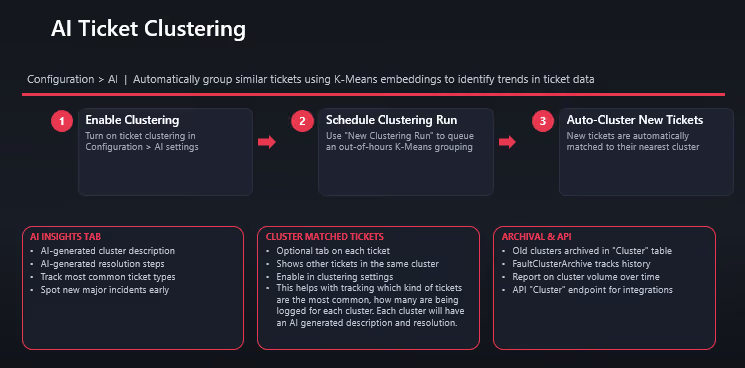
For MSPs handling high ticket volumes, this gives teams another way to identify recurring issues, spot trends and understand where demand is coming from.
The Gantt chart has been updated with improved visuals across ticket, agent and project views.
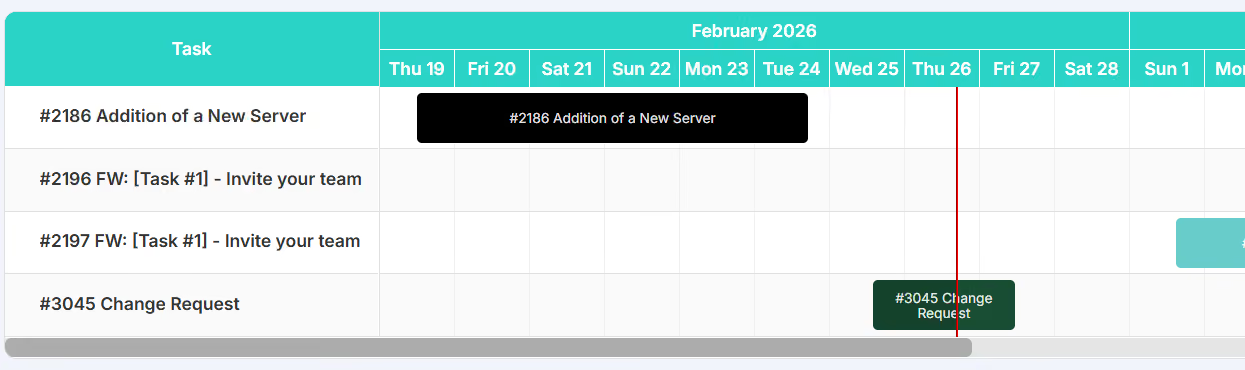
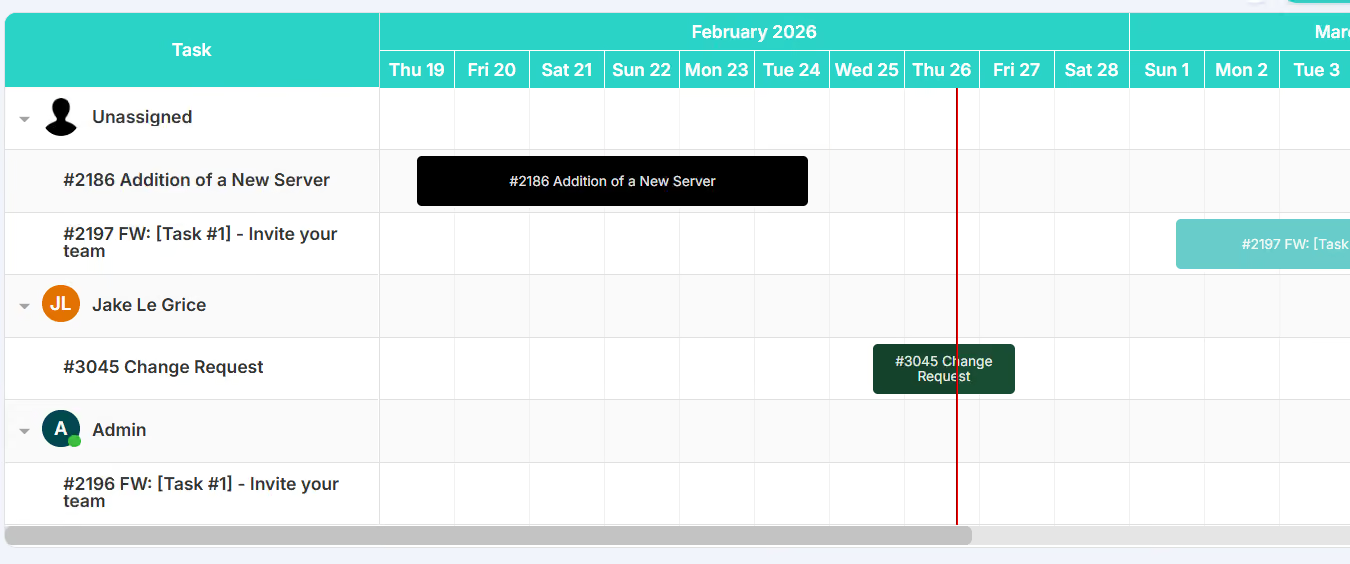
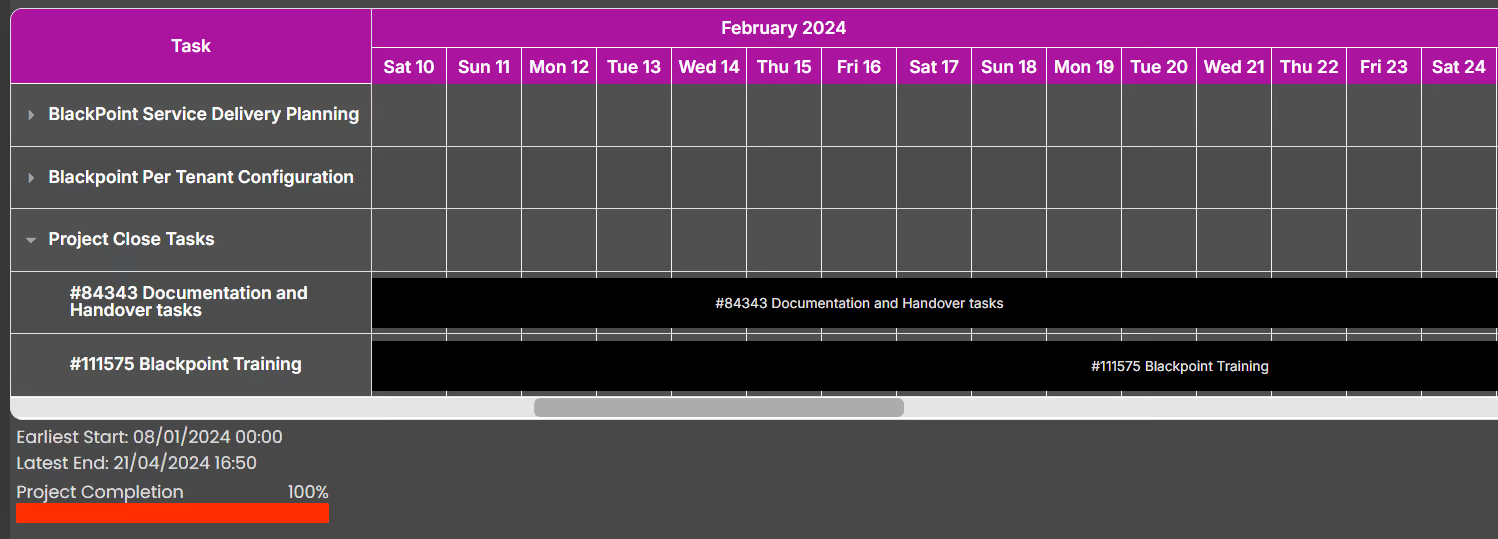
All existing functionality remains the same, but the Gantt charts are now using a new component. This creates the foundation for further improvements in future releases, including dependency visibility, filtering for different views and more.
For teams managing projects in HaloPSA, these visual updates should make project planning and scheduling easier to work with.
A new Security Questions module is now available under Users configuration.
This allows teams to set up identity verification questions for users calling into the service desk. The questions users must answer can be configured, with optional validation for minimum length, maximum length and regex patterns.
Teams can also configure how many questions are presented, up to a maximum of five, as well as the pass and fail thresholds. This includes setting how many questions must be answered correctly and how many incorrect answers are permitted.
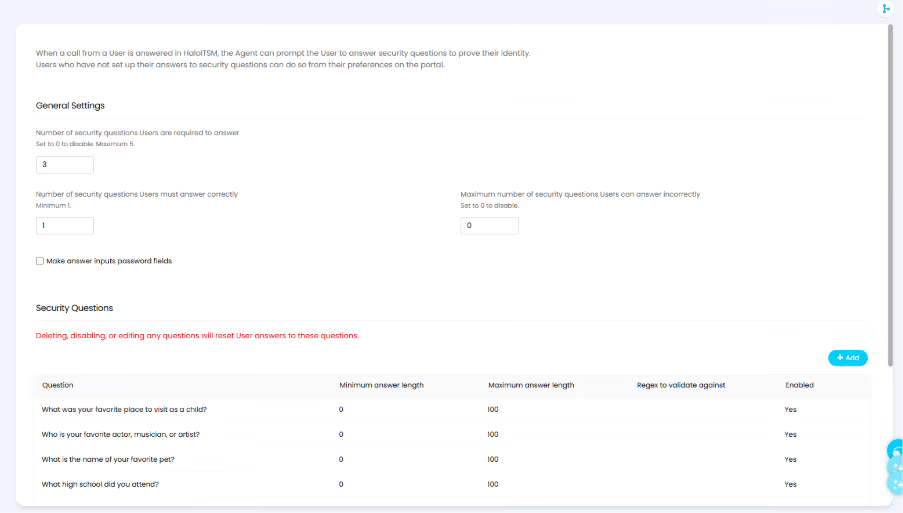
Users who have not yet set their answers will be prompted to do so on the portal. They can also update their answers at any time from their preferences page.
Additional guardrails allow teams to determine whether answers can be displayed as plain text or masked as passwords.
On the call screen, once a user has been selected, the agent can initiate a security question check. The user provides their answers verbally, and the agent validates them in real time.
If validation passes, the user is saved against the call.
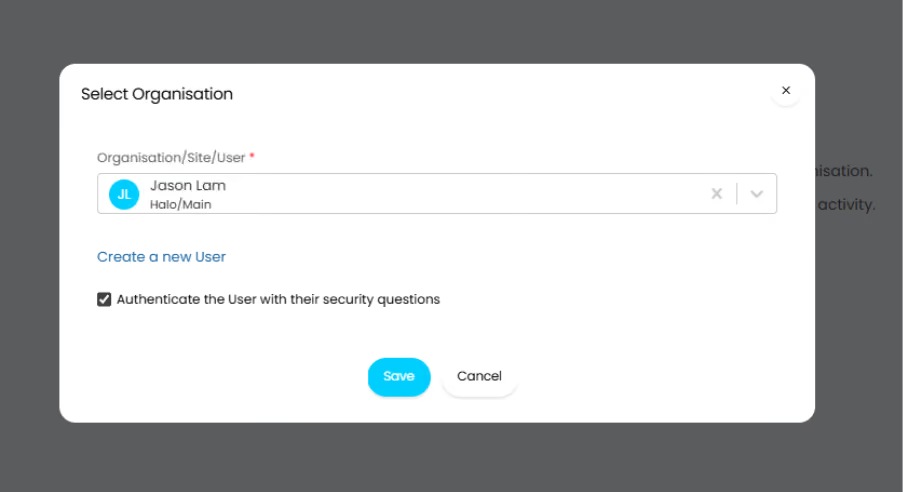
This helps teams add a more structured verification process when supporting users over the phone.
A new Attachment custom field type is now available for tickets.
This can be added when configuring custom fields and requires client-side uploads to be enabled.
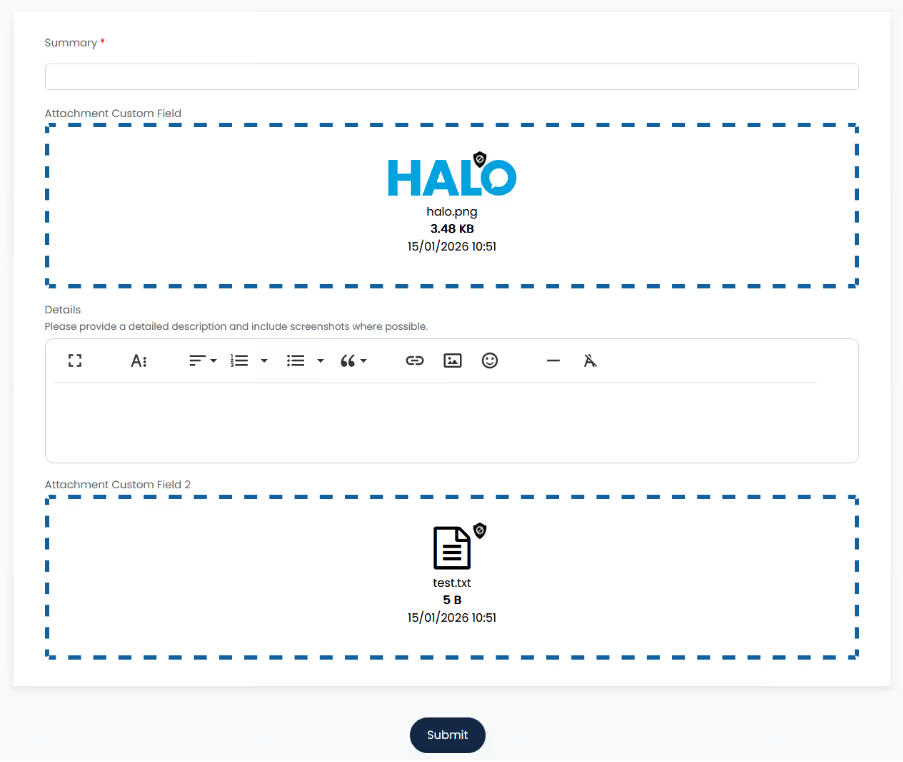
When added to a ticket type, the field appears as a drop zone on the portal when a new ticket is created. It supports multiple file uploads, making it easier for users to provide supporting files as part of the ticket submission process.
Once the ticket has been created, the field becomes read-only and displays clickable file links. Attachments added through this field also appear in the ticket’s Attachments tab.
From there, they can be managed in the same way as other attachments, including permanent deletion.
Scheduled reports can now be sent to distribution lists.
When configuring recipients for a scheduled report, a new “Recipient Type” option is available. Switching this from Manual to Distribution List allows users to select an existing distribution list as the recipient.
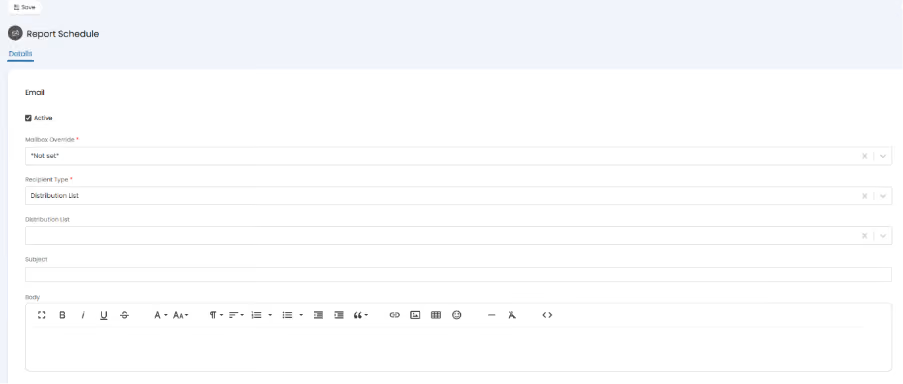
This removes the need to maintain individual email addresses on each report. As team membership changes, the distribution list can be updated centrally, keeping scheduled reporting easier to manage.
Users can now log tickets directly from asset records on the Self-Service Portal.
A default ticket type can be configured against a Configuration Item or Asset Type. This allows users to raise an issue or request linked to a specific asset without needing to navigate away and manually re-enter the asset details.
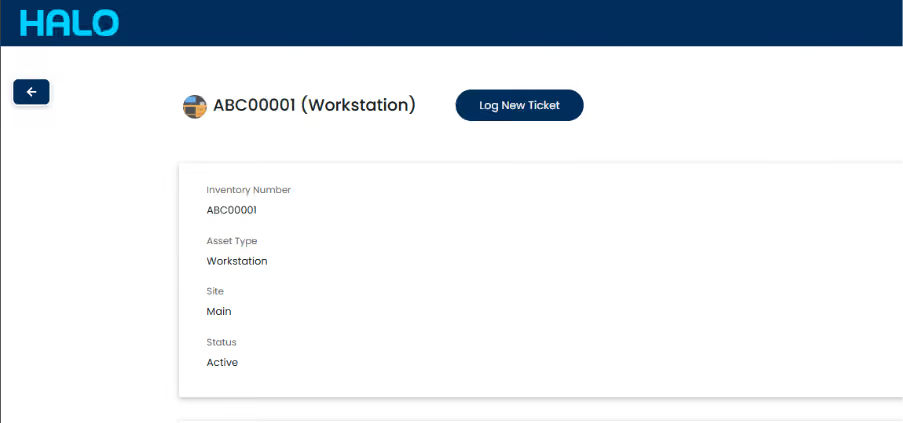
For teams managing customer assets in HaloPSA, this helps reduce duplicated data entry and keeps asset-related requests connected to the right record from the start.
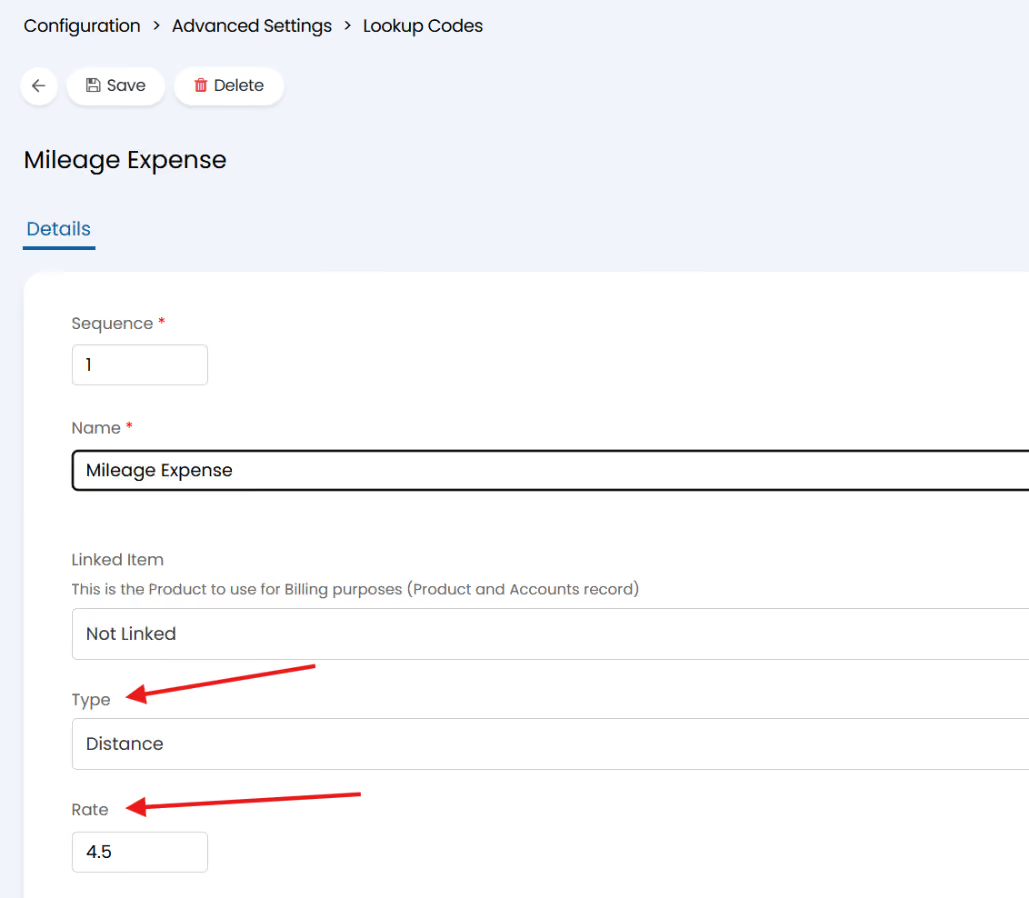
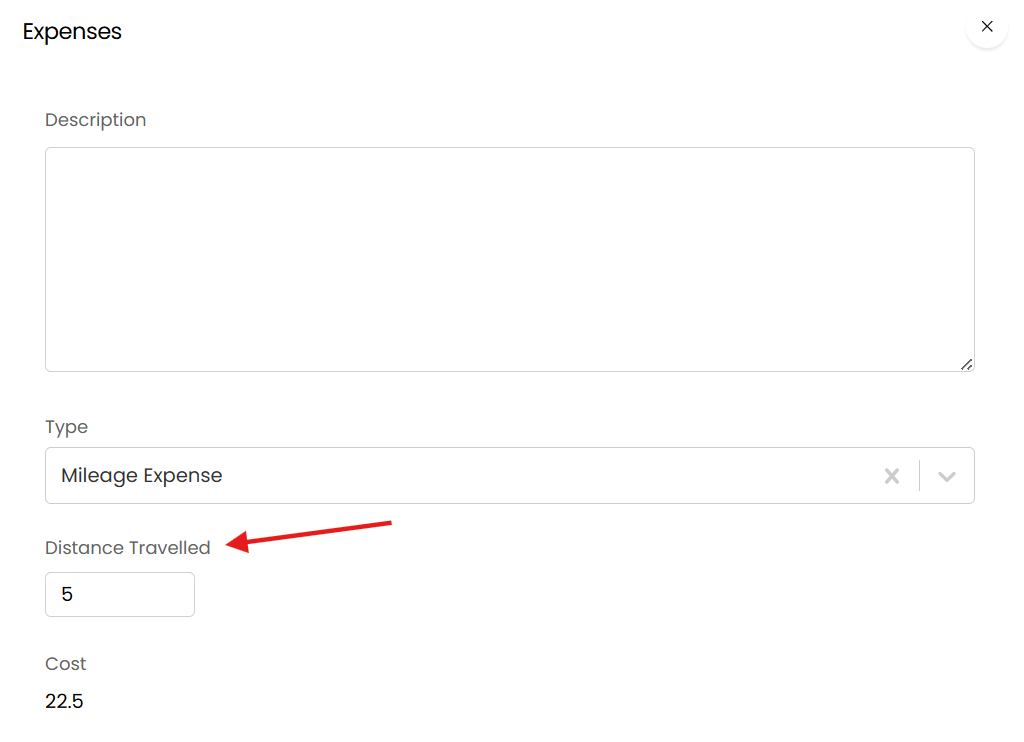
Expense types now support new Type and Rate fields.
This makes it possible to configure an expense as a distance type with a set mileage rate. When a distance expense is selected, the cost is calculated automatically based on the rate and the distance travelled.
HaloPSA now includes an Intermedia Contact Centre integration.
This feature allows a request to be sent from Intermedia into HaloPSA when a call is received on Intermedia’s Call Centre Agent application.
Once an agent answers a call, there are two configurable options. The call screen can open automatically in a new tab, or a notification can appear, which the agent can click to open the call screen.
HaloPSA will attempt to find the user based on their phone number. If a ticket is logged, or an existing ticket is updated with information from the call, teams can choose whether the call recording should be added as an attachment on the ticket. Opening the attachment will open the link to the call recording.
This gives teams a more connected experience between call handling and ticket management, helping agents keep call information linked to the right customer record.
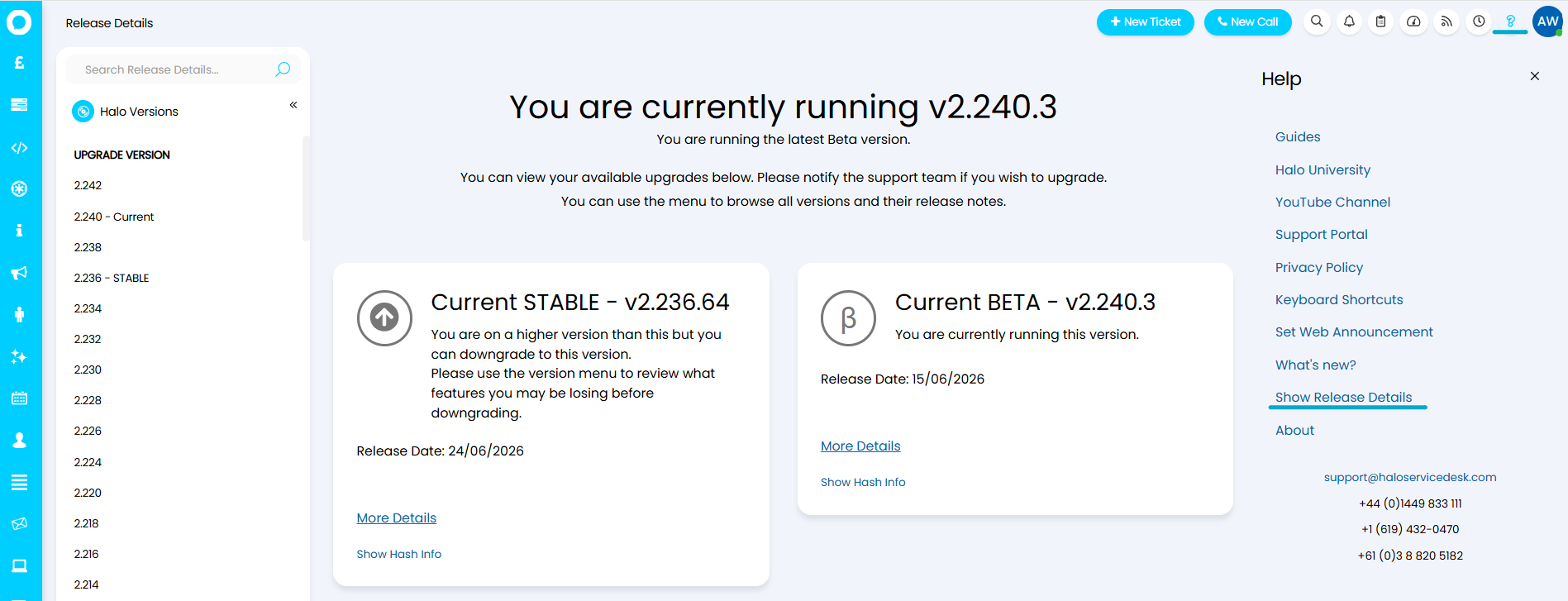
For further information and to see all new features, click the question mark in the top right of your screen, then select ‘Show Release Details’.
To find out more information about future developments, look at our roadmap here!
If you’d like to speak to one of our team about specific features, or have any more specific questions, please contact your Customer Success Manager or feel free to contact us and we will get in touch as soon as we can.